
使用Django做文件上传功能会遇到跨域安全问题,这里分享下如何搭建一个简单的Django文件上传应用,以及如何利用DWT SDK和Django来上传图像文件。
参考原文:Uploading Files with Django
作者:Desmond Shaw
翻译:yushulx
本网站刊载的所有内容,包括文字、图片、音频、视频、软件、程序、以及网页版式设计等均在网上搜集。
  访问者可将本网站提供的内容或服务用于个人学习、研究或欣赏,以及其他非商业性或非盈利性用途,但同时应遵守著作权法及其他相关法律的规定,不得侵犯本网站及相关权利人的合法权利。除此以外,将本网站任何内容或服务用于其他用途时,须征得本网站及相关权利人的书面许可,并支付报酬。
  本网站内容原作者如不愿意在本网站刊登内容,请及时通知本站,予以删除。
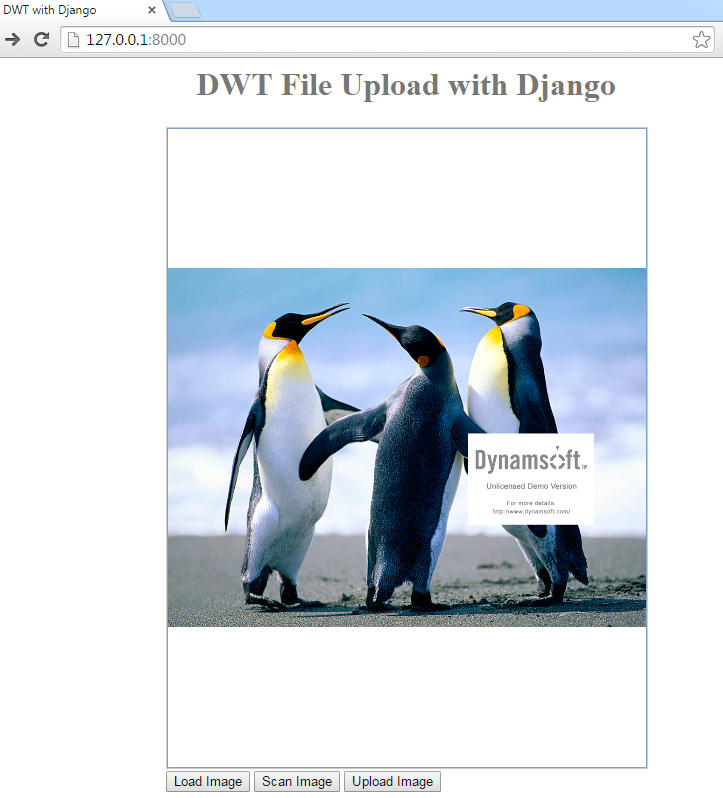
通过命令行来安装:
pip install django
创建一个新工程:
django-admin startproject project
创建应用:
python manage.py startapp application
在工程根目录中创建文件夹templates。在settings.py中声明下[os.path.join(BASE_DIR, ‘templates‘)]。
在templates中创建一个HTML页面。
如果需要加载静态资源,比如CSS, JavaScript,图片等,需要在 settings.py中声明。
在urls.py中映射URL。并在对应的views.py中实现函数。
下面通过两个例子来看下具体实现方法。
创建Django工程simpleform:
django-admin startproject simpleform
创建一个应用formupload:
python manage.py startapp formupload
创建文件夹templates,并在settings.py中声明路径:
‘‘‘
Author : Desmond Shaw
Company: Dynamsoft
Website: www.dynamsoft.com
‘‘‘

TEMPLATES = [
    {
        ‘BACKEND‘: ‘django.template.backends.django.DjangoTemplates‘,
        ‘DIRS‘: [os.path.join(BASE_DIR, ‘templates‘)],
        ‘APP_DIRS‘: True,
        ‘OPTIONS‘: {
            ‘context_processors‘: [
                ‘django.template.context_processors.debug‘,
                ‘django.template.context_processors.request‘,
                ‘django.contrib.auth.context_processors.auth‘,
                ‘django.contrib.messages.context_processors.messages‘,
            ],
        },
    },
]
在templates下创建一个简单的页面index.htm:
<html>
<head>
  <title>Django File Upload</title>
  <style>
    h1 {
      font-size: 2em;
      font-weight: bold;
      color: #777777;
      text-align: center
    }
    table {
      margin: auto;
    }
  </style>
</head>

<body>
  <h1>
      {{what}}
  </h1>
  <table>
    <tr>
      <td>
        <form action="{{ request.build_absolute_uri }}upload/" method="POST" enctype="multipart/form-data">
          <input type="file" name="file"/>
          <br />
          <input type="submit" value="Upload File" />
        </form>
      </td>
    </tr>
  </table>

</body>

</html>
Django的模板引擎会替换{{what}}的值。
打开urls.py,添加映射:
‘‘‘
Author : Desmond Shaw
Company: Dynamsoft
Website: www.dynamsoft.com
‘‘‘

from formupload import views

urlpatterns = [
    url(r‘^$‘, views.home, name="home"),
    url(r‘^upload/‘, views.upload, name="upload"),
]
在网页中输入URL之后,Django会用对应的函数来处理请求。
打开views.py,添加函数实现:
def home(request):
    return render(request, ‘index.htm‘, {‘what‘:‘Django File Upload‘})

def upload(request):
    if request.method == ‘POST‘:
        handle_uploaded_file(request.FILES[‘file‘], str(request.FILES[‘file‘]))
        return HttpResponse("Successful")

    return HttpResponse("Failed")

def handle_uploaded_file(file, filename):
    if not os.path.exists(‘upload/‘):
        os.mkdir(‘upload/‘)

    with open(‘upload/‘ + filename, ‘wb+‘) as destination:
        for chunk in file.chunks():
            destination.write(chunk)
使用下面的命令来启动服务:
python manage.py runserver
打开127.0.0.1:8000,试着上传一个文件。这个时候会报错“CSRF verification failed. Request aborted“。
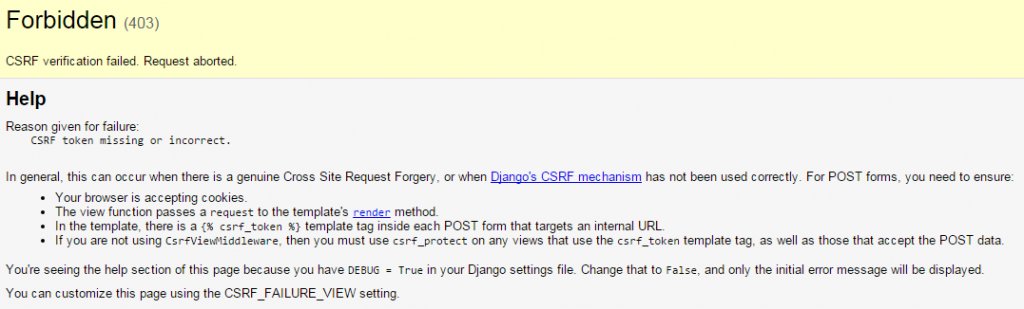
要解决这个问题有两种方法:
在settings.py中把django.middleware.csrf.CsrfViewMiddleware注释掉
在Form中使用{% csrf_token %}:
<form action="{{ request.build_absolute_uri }}upload/" method="POST" enctype="multipart/form-data">
          {% csrf_token %}
          <input type="file" name="file"/>
          <br />
          <input type="submit" value="Upload File" />
</form>关于CSRF,可以参考Cross Site Request Forgery protection。
创建Django工程dwt:
django-admin startproject dwt
创建应用dwtupload:
python manage.py startapp dwtupload
和之前一样创建templates,并把它的路径添加到settings.py中。
创建一个页面:
{% load staticfiles %}
<html>

<head>
  <title>DWT with Django</title>
  <script type="text/javascript" src="{% static "dynamsoft.webtwain.initiate.js" %}"></script>
  <script type="text/javascript" src="{% static "dynamsoft.webtwain.config.js" %}"></script>
  <script type="text/javascript" src="{% static "jquery-2.1.4.min.js" %}"></script>
  <style>
    h1 {
      font-size: 2em;
      font-weight: bold;
      color: #777777;
      text-align: center
    }
    table {
      margin: auto;
    }
  </style>
</head>

<body>
  <h1>
            {{what}}
  </h1>
  <table>
    <tr>
      <td>
        <!-- dwtcontrolContainer is the default div id for Dynamic Web TWAIN control.
                   If you need to rename the id, you should also change the id in dynamsoft.webtwain.config.js accordingly. -->
        <div id="dwtcontrolContainer"></div>
      </td>
    </tr>

    <tr>
      <td>
        <input type="button" value="Load Image" onclick="btnLoad_onclick();" />
        <input type="button" value="Scan Image" onclick="AcquireImage();" />
        <input id="btnUpload" type="button" value="Upload Image" onclick="btnUpload_onclick()">
      </td>
    </tr>
  </table>

  <!--Custom script goes here-->
  <script type="text/javascript">
    Dynamsoft.WebTwainEnv.RegisterEvent(‘OnWebTwainReady‘, Dynamsoft_OnReady);
    var DWObject;

    function Dynamsoft_OnReady() {
      DWObject = Dynamsoft.WebTwainEnv.GetWebTwain(‘dwtcontrolContainer‘); // Get the Dynamic Web TWAIN object that is embeded in the div with id ‘dwtcontrolContainer‘
      DWObject.Width = 480; // Set the width of the Dynamic Web TWAIN Object
      DWObject.Height = 640; // Set the height of the Dynamic Web TWAIN Object
    }

    function btnLoad_onclick() {
      var OnSuccess = function() {};

      var OnFailure = function(errorCode, errorString) {};

      DWObject.IfShowFileDialog = true;
      DWObject.LoadImageEx("", EnumDWT_ImageType.IT_ALL, OnSuccess, OnFailure);
    }

    function AcquireImage() {
      if (DWObject) {
        DWObject.IfShowUI = false;
        DWObject.IfDisableSourceAfterAcquire = true; // Scanner source will be disabled/closed automatically after the scan.
        DWObject.SelectSource(); // Select a Data Source (a device like scanner) from the Data Source Manager.
        DWObject.OpenSource(); // Open the source. You can set resolution, pixel type, etc. after this method. Please refer to the sample ‘Scan‘ -> ‘Custom Scan‘ for more info.
        DWObject.AcquireImage(); // Acquire image(s) from the Data Source. Please NOTE this is a asynchronous method. In other words, it doesn‘t wait for the Data Source to come back.
      }
    }

    function btnUpload_onclick() {
      DWObject.HTTPPort = 8000;
      var CurrentPathName = unescape(location.pathname); // get current PathName in plain ASCII
      var CurrentPath = CurrentPathName.substring(0, CurrentPathName.lastIndexOf("/") + 1);
      var strActionPage = CurrentPath + "upload/";
      var strHostIP = "127.0.0.1"; // server IP e.g. 192.168.8.84

      var OnSuccess = function(httpResponse) {
        alert("Succesfully uploaded");
      };

      var OnFailure = function(errorCode, errorString, httpResponse) {
        alert(httpResponse);
      };

      var date = new Date();
      var csrftoken = getCookie(‘csrftoken‘);
      DWObject.SetHTTPFormField(‘csrfmiddlewaretoken‘, csrftoken);
      DWObject.HTTPUploadThroughPostEx(
        strHostIP,
        DWObject.CurrentImageIndexInBuffer,
        strActionPage,
        date.getTime() + ".jpg",
        1, // JPEG
        OnSuccess, OnFailure
      );
    }

    function getCookie(name) {
      var cookieValue = null;
      if (document.cookie && document.cookie != ‘‘) {
          var cookies = document.cookie.split(‘;‘);
          for (var i = 0; i < cookies.length; i++) {
              var cookie = jQuery.trim(cookies[i]);
              // Does this cookie string begin with the name we want?
              if (cookie.substring(0, name.length + 1) == (name + ‘=‘)) {
                  cookieValue = decodeURIComponent(cookie.substring(name.length + 1));
                  break;
              }
          }
      }
      return cookieValue;
    }

  </script>

</body>

</html>
和之前代码不同的是,这里用到了静态资源。通过{% loadstaticfiles %}和 {% static “dynamsoft.webtwain.initiate.js” %} 可以实现静态资源加载。另外,我们还必须在settings.py中声明静态资源路径:
STATICFILES_DIRS = (
    os.path.join(BASE_DIR, "Resources"),
)
另外,我们需要从cookies中获取CSRF token:
function getCookie(name) {
    var cookieValue = null;
    if (document.cookie && document.cookie != ‘‘) {
        var cookies = document.cookie.split(‘;‘);
        for (var i = 0; i < cookies.length; i++) {
            var cookie = jQuery.trim(cookies[i]);
            // Does this cookie string begin with the name we want?
            if (cookie.substring(0, name.length + 1) == (name + ‘=‘)) {
                cookieValue = decodeURIComponent(cookie.substring(name.length + 1));
                break;
            }
        }
    }
    return cookieValue;
}
var csrftoken = getCookie(‘csrftoken‘);
要通过CSRF保护, 我们需要调用Dynamic Web TWAIN SDK的接口:
DWObject.SetHTTPFormField(
‘csrfmiddlewaretoken‘
, csrftoken);
最后,通过URL映射和参数修改(request.FILES[‘file‘]改成request.FILES[‘RemoteFile‘]),我们就可以实现图像上传了:
https://github.com/dynamsoftsamples/dwt-django-file-upload
原文:http://my.oschina.net/yushulx/blog/469802